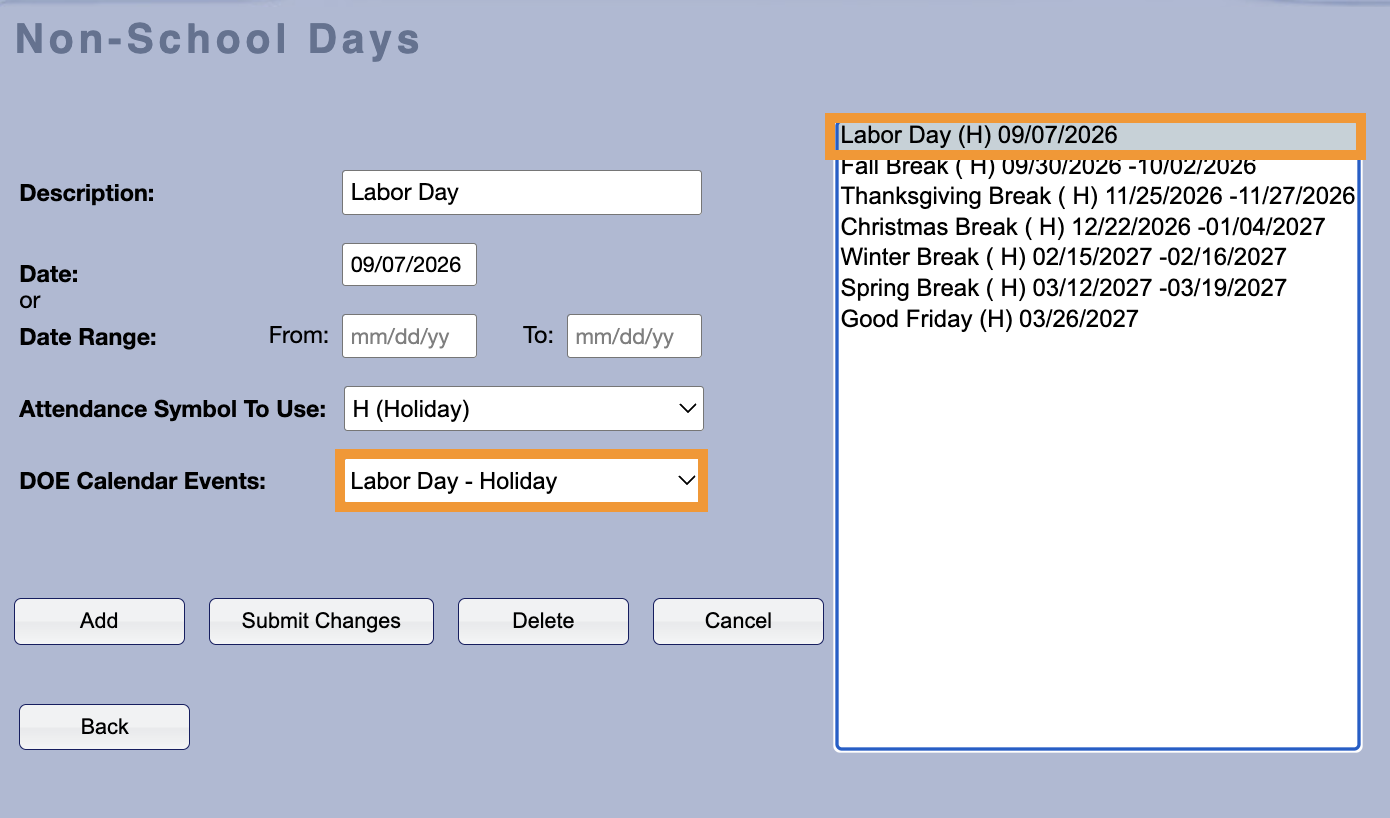
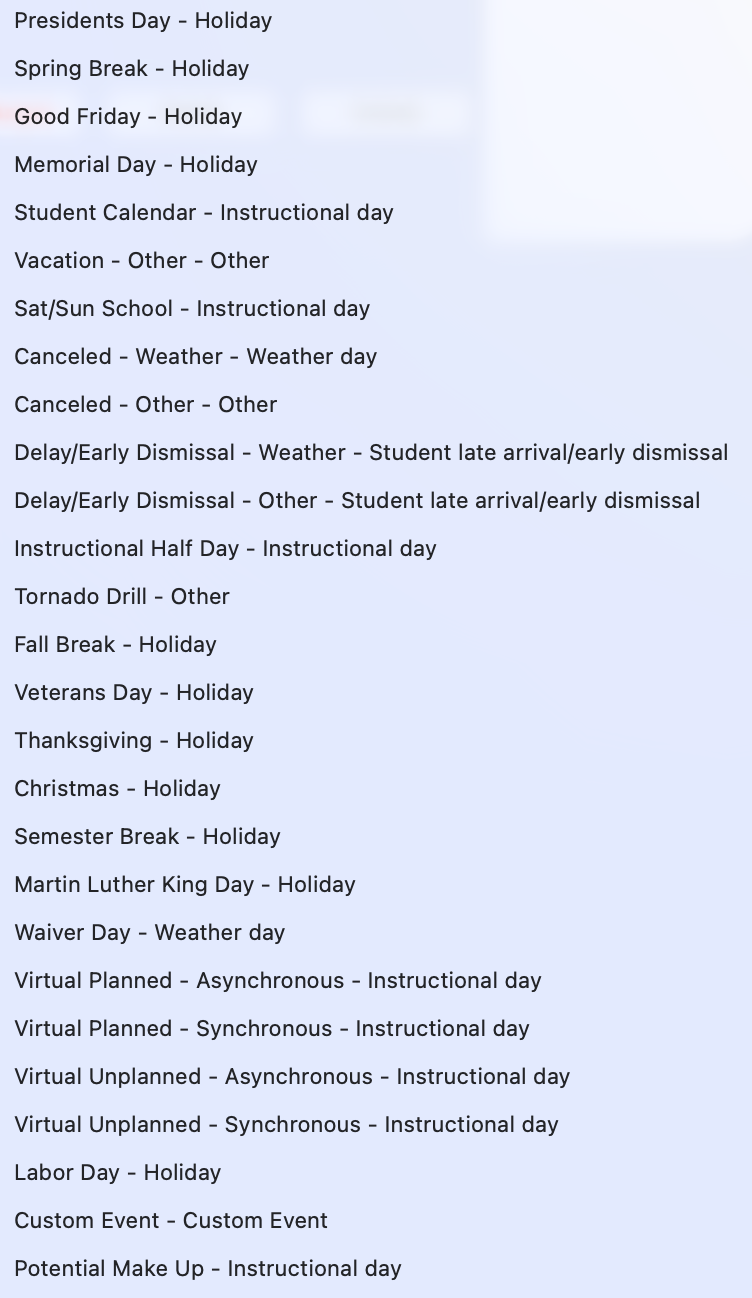
In order to submit Daily/School Attendance records to Data Exchange, Calendar Events (such as "Present", "Absent" and so on) need to be assigned an Ed-Fi Event Category. Any attendance records that make use of a calendar event without an assigned Ed-Fi Event Category will not be submitted to Data Exchange. Additionally, any non-instructional days that occur during the school year need to be declared as such via DOE Calendar Events.
Assigning Ed-Fi Event Categories
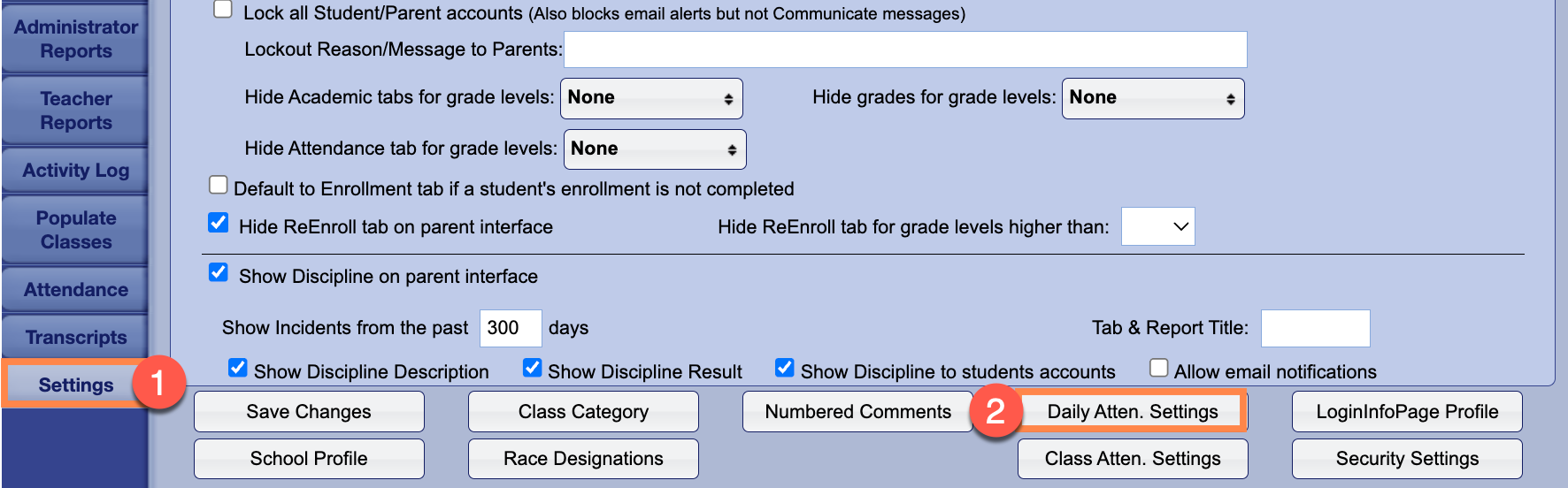
Assigning Ed-Fi Event Categories to Gradelink Calendar Events is easy: first, go to the Settings tab and click on the Daily Attendance Settings button near the bottom of the page.
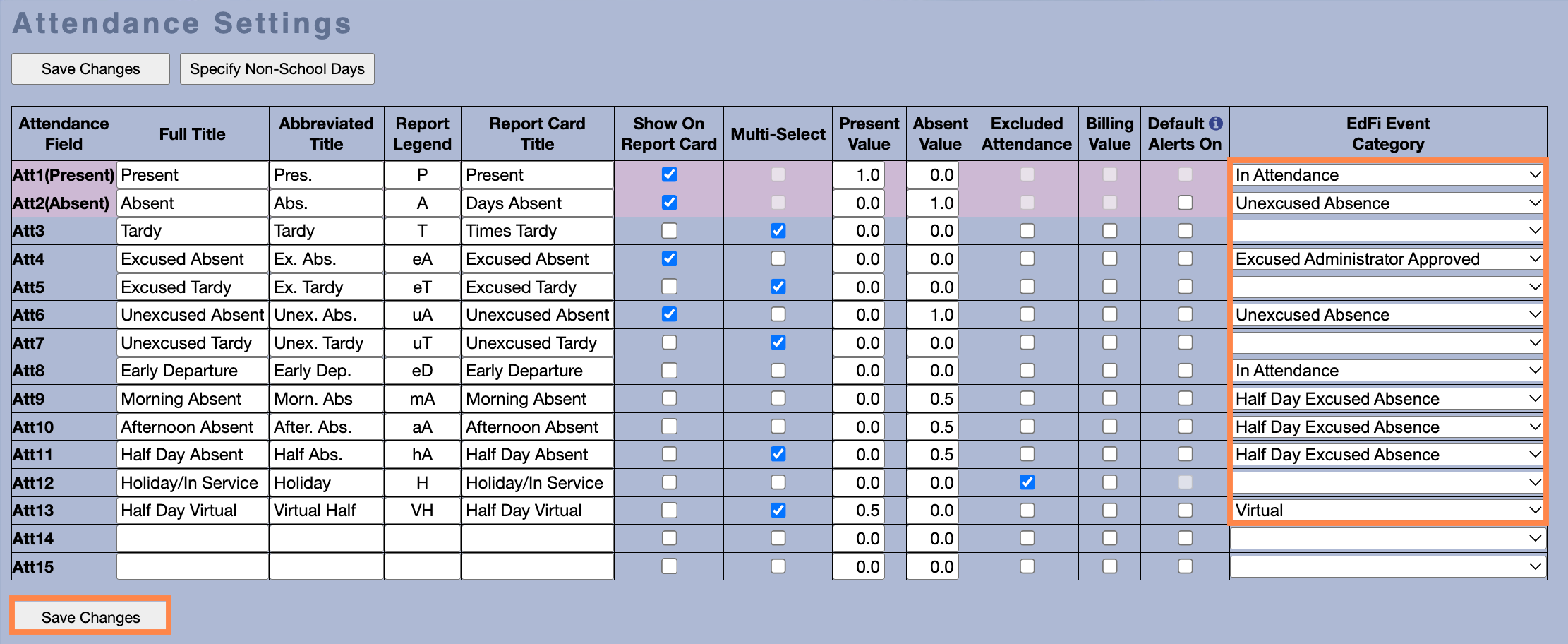
To assign an Ed-Fi Event Category to a calendar event, all you need to do is select a value from the dropdown menu on the right side of the page and then click Save Changes.
Creating DOE Calendar Events
Creating a DOE Calendar Event is a quick process, especially if you've already created Non-School Days in Gradelink. If you haven't, please click here to learn more about Non-School Days.
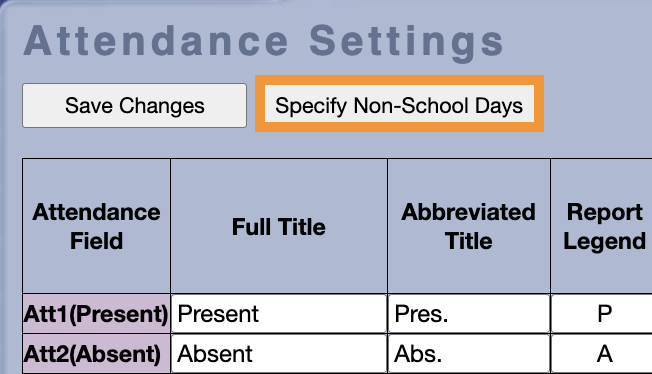
To create a DOE Calendar Event, start by clicking on the Specify Non-School Days button that appears at the top of the Daily Attendance Settings page.
For instructions how to add Non-School Days, please click here.
Then, all you need to do is select an existing Non-School Day from the list on the right and assign a DOE Calendar Event to it using the corresponding dropdown menu on the left. The DOE Calendar Events menu includes a large number of different events to choose from, so pick the ones that best correspond to the Non-School Days you've configured in Gradelink. If none of the values in the dropdown menu match, then select "Custom Event" instead (it's at the bottom of the list).